
RemoveTexts vs TinyFast
Side-by-side comparison to help you choose the right product.

RemoveTexts
RemoveTexts instantly erases any text from images using AI, making professional editing effortless for everyone.
Last updated: March 11, 2026

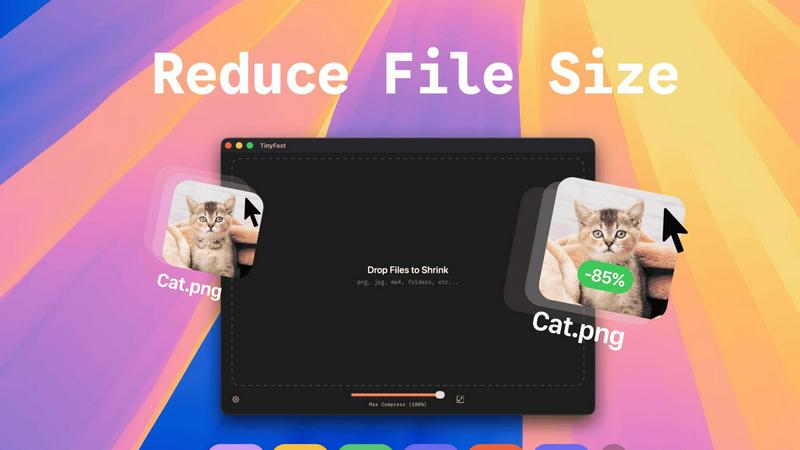
TinyFast instantly shrinks your files privately on your Mac, getting faster and safer with every use.
Last updated: February 28, 2026
Visual Comparison
RemoveTexts

TinyFast
Feature Comparison
RemoveTexts
Paint to Remove
This feature offers precise, user-controlled removal. Simply upload your image and use a digital brush to paint directly over the specific text, watermark, or element you want gone. The AI then works only on the selected areas, giving you granular control for complex edits where you need to preserve surrounding text or intricate background details. It's the perfect tool for targeted cleanup without affecting the rest of your image.
Auto Remove All Text
For maximum speed and convenience, this one-click feature automatically detects and removes every text element in your image. The AI scans the entire picture, identifying watermarks, captions, subtitles, date stamps, and branded overlays across 50+ languages, and erases them all simultaneously. It delivers a completely clean canvas in seconds, embodying the tool's core promise of effortless, intelligent automation for bulk editing tasks.
Edit & Replace Text
Go beyond simple removal by editing existing text directly within your image. This advanced AI feature allows you to change words or phrases, and it will intelligently generate new text that matches the original font, size, color, and style. This seamless replacement maintains the visual integrity of the image, making it ideal for updating memes, correcting labels, or modifying graphics without starting from scratch.
Remove Objects
Extending its capability beyond text, this mode empowers users to erase any unwanted object, person, logo, or visual element from a photo. By painting over the object, the AI analyzes the surrounding pixels to reconstruct a believable and natural background. This feature is continuously refined through iterative learning, improving its ability to handle complex objects and varied scenes for truly traceless removal.
TinyFast
100% Local & Private Compression
TinyFast is engineered with privacy as its core principle. Every compression task is processed entirely on your Mac. Your files never leave your device, are not uploaded to any cloud server, and remain completely under your control. This is essential for handling files under Non-Disclosure Agreements (NDAs), confidential client work, or any proprietary material, providing total peace of mind and security by design.
Blazing-Fast Batch Processing
Experience workflow acceleration with TinyFast's optimized native engines. You can drag and drop entire folders filled with images, videos, or documents, and the app will shrink them all in seconds. This batch processing capability eliminates the tedious task of compressing files one by one, saving you hours every week and integrating continuous improvement directly into your asset management routine.
Universal File Format Support
TinyFast supports a comprehensive range of common file types, making it a versatile hub for all your compression needs. This includes images (PNG, JPG, TIFF, HEIC, WEBP, GIF, BMP, SVG), videos (MP4, MOV, M4V), documents (PDF, DOCX), code files (JS, CSS, JSON), and audio (MP3). This universal support streamlines your toolkit, removing the need for multiple specialized applications.
Integrated Resolution Resizing
Beyond simple compression, TinyFast offers the ability to automatically resize the resolution of your images and videos. This dual functionality of shrinking file size and adjusting dimensions allows for precise optimization for web use, email attachments, or storage, all within the same simple drag-and-drop action, further refining and improving your media preparation process.
Use Cases
RemoveTexts
Cleaning Product Photos for E-Commerce
Online sellers can use RemoveTexts to clean up product images by removing distracting watermarks from supplier photos, erasing promotional text overlays, or deleting price tags and labels. This results in professional, brand-consistent visuals for their storefronts, improving customer focus on the product itself and enhancing overall presentation quality for higher conversion rates.
Preparing Professional Screenshots and Presentations
Professionals creating tutorials, reports, or presentations often need clean screenshots. RemoveTexts effortlessly erases unwanted UI elements, browser tabs, system notifications, or personal data from screenshots. This ensures that the focus remains on the intended content, creating polished and distraction-free materials suitable for client-facing or educational purposes.
Redacting Sensitive Information
Legal, real estate, and administrative professionals can utilize the tool for redaction. Instead of using crude black bars that destroy the document's layout, RemoveTexts can seamlessly erase sensitive text like names, addresses, or account numbers from scanned documents or photos while preserving the natural background texture, maintaining a neat and professional appearance.
Revitalizing Personal and Stock Photography
Photographers and content creators can breathe new life into images by removing date stamps, intrusive logos, photobombers, or outdated signage. This allows for the repurposing of old photos or the customization of stock imagery to better fit a specific project's needs, all while achieving a natural look that appears untouched.
TinyFast
Web Developers & Designers
Developers and designers constantly need to optimize website assets like images, SVGs, and videos for performance without sacrificing quality. TinyFast allows them to batch-process these files locally, ensuring fast load times for their projects while keeping unreleased designs and proprietary code completely secure and private on their own machines.
Content Creators & Marketers
Bloggers, social media managers, and marketers handling large volumes of media can use TinyFast to quickly prepare images and videos for publication. Compressing files locally before uploading to platforms saves bandwidth, reduces storage costs, and speeds up content delivery, all while protecting raw footage and confidential campaign materials.
App & Software Developers
Developers working on apps need to bundle assets efficiently. TinyFast helps shrink application resources like icons, interface images, and documentation (PDFs) directly on their Mac, ensuring the final app package is lean. This local processing is crucial for protecting intellectual property and pre-release builds during the iterative development cycle.
Professionals Handling Sensitive Documents
Lawyers, consultants, and accountants who regularly share large PDF reports, presentations, or document bundles can use TinyFast to reduce file sizes for email without ever risking a breach of client confidentiality. The guarantee that files stay local aligns perfectly with professional privacy standards and compliance needs.
Overview
About RemoveTexts
RemoveTexts is an AI-powered online tool designed to intelligently and seamlessly remove unwanted text from any image in seconds, eliminating the need for complex software like Photoshop. It leverages state-of-the-art deep learning inpainting technology, similar to that pioneered by industry leaders, to analyze an image's background and reconstruct it flawlessly after text removal. This process ensures professional, traceless results where no one can tell text was ever present. The tool is built for a global audience of creators, marketers, e-commerce sellers, designers, and professionals who need to clean up visuals quickly. Whether it's erasing watermarks from stock photos, cleaning up screenshots for presentations, redacting sensitive information, or removing subtitles and date stamps, RemoveTexts delivers high-quality 4K output with no design skills required. Its core value proposition lies in its iterative improvement cycle; the AI continuously learns from processing over 100,000 images, ensuring ever-more precise and seamless background reconstruction with each use. This commitment to cyclical enhancement makes it a reliable and evolving solution for anyone looking to achieve perfect, clean images effortlessly.
About TinyFast
TinyFast is a purpose-built macOS application designed to revolutionize how developers, designers, and creators handle file optimization. It is a fast, private, and local file compressor that supports a wide array of formats including PNG, JPEG, MP4, MOV, PDF, SVG, WebP, MP3, and GIF. The fundamental value proposition is eliminating the need to upload sensitive or proprietary files to unknown online servers. Instead, TinyFast performs all compression directly on your Mac, ensuring your data never leaves your machine. This addresses critical pain points of security, speed, and workflow efficiency. Born from a developer's frustration with insecure online tools, TinyFast integrates seamlessly into your creative or technical process via an intuitive drag-and-drop interface. It represents a continuous improvement in personal productivity tools, offering a reliable, always-available solution that protects your confidential work while delivering blazing-fast results. It's more than just a compressor; it's a commitment to a safer, faster, and more efficient digital workflow that evolves with your needs. By keeping everything local, TinyFast provides a superior alternative to web-based tools, ensuring your workflow is not only optimized today but also built on a foundation of privacy and control for the future.
Frequently Asked Questions
RemoveTexts FAQ
What image formats does RemoveTexts support?
RemoveTexts supports common image formats including JPG, PNG, and WebP. You can upload files up to 10 MB in size. The tool processes these files and allows you to download the cleaned result in a high-quality format without adding any watermarks to your final image.
How does the AI remove text without leaving a trace?
The tool uses advanced deep learning inpainting technology. When text is selected for removal, the AI analyzes the pixels, colors, patterns, and textures surrounding the text area. It then intelligently reconstructs the background by generating new pixels that blend seamlessly with the existing image, ensuring no visible artifacts, blurring, or harsh edges remain.
Is RemoveTexts completely free to use?
Yes, RemoveTexts is a free online tool. You can upload images, use features like Paint to Remove or Auto Remove All Text, and download your results without any cost or subscription. The platform is committed to continuous, iterative improvement to keep providing this accessible service to its global community of users.
Can I use it to remove text from complex backgrounds?
Absolutely. The AI is specifically engineered to handle complex backgrounds including gradients, patterns, textures, and detailed scenery. Its iterative learning process from processing vast numbers of images enhances its ability to perform perfect edge blending and context-aware reconstruction, making it effective even on challenging backgrounds.
TinyFast FAQ
Is TinyFast really free to use?
Yes, TinyFast offers a free tier forever. You can compress up to 5 files per day with access to all core features, allowing you to experience the speed, privacy, and simplicity of local compression at no cost. This is part of our commitment to providing continuous value and improvement to all users.
What happens to my files during compression?
Nothing leaves your computer. TinyFast performs all compression work locally on your Mac's hardware. The original file remains untouched in its location, and a new, optimized version is created. Your data is never uploaded to the internet or stored on any external server, ensuring complete privacy.
What file types does TinyFast support?
TinyFast supports a wide variety of common formats. This includes images (PNG, JPG, TIFF, HEIC, WEBP, GIF, BMP, SVG), videos (MP4, MOV, M4V), documents (PDF, DOCX), code files (JS, CSS, JSON), and audio files (MP3). This universal support is designed to evolve and cover most compression needs in a single tool.
Can I compress multiple files at once?
Absolutely. TinyFast features powerful batch processing. You can drag and drop an entire folder containing supported files, and the app will compress them all in one go, outputting the optimized versions in seconds. This is designed for maximum workflow efficiency, embodying the principle of continuous time-saving improvement.
Alternatives
RemoveTexts Alternatives
RemoveTexts is a leading AI-powered image editing tool in the text removal category. It allows users to effortlessly erase watermarks, subtitles, and other unwanted text from images without needing complex software like Photoshop. Users often seek alternatives for various reasons, including budget constraints, the need for different feature sets, or specific platform compatibility like desktop versus web-based tools. When evaluating other options, it's crucial to consider several key factors. Look at the core AI capability for clean, seamless background reconstruction after text removal. Assess the balance between automated features and manual control, the supported output quality, and the overall user experience. The goal is to find a solution that evolves with your needs, offering continuous improvement in both power and simplicity. The ideal alternative should provide a straightforward, iterative workflow that gets better with use. It should handle a variety of image types and text complexities, delivering professional-grade results that save time and effort. Prioritizing tools that focus on user-friendly innovation ensures your editing process becomes more efficient and effective over time.
TinyFast Alternatives
TinyFast is a dedicated macOS application for local file compression, offering a secure and fast way to shrink images, videos, and PDFs directly on your computer. It belongs to the category of productivity and optimization tools, designed for users who prioritize privacy and workflow efficiency. People often explore alternatives for various reasons, such as different pricing models, the need for cross-platform availability on Windows or Linux, or specific feature requirements not covered by a single tool. When evaluating other options, it's crucial to consider your core needs. Key factors include the privacy model—whether processing happens locally or in the cloud—the range of supported file formats, and the overall impact on your daily workflow. The goal is to find a solution that not only meets your immediate technical requirements but also aligns with a philosophy of continuous improvement in how you manage digital assets. The ideal tool should evolve with your projects, offering reliability and efficiency without compromising on security or speed. This iterative approach to selecting software ensures your digital toolkit remains robust and responsive to the changing demands of creative and technical work.